Slots
Use the slot management view in PicoKey App to configure OTP and related features.
Each slot can hold an OTP, static password, or related function supported by the device firmware.
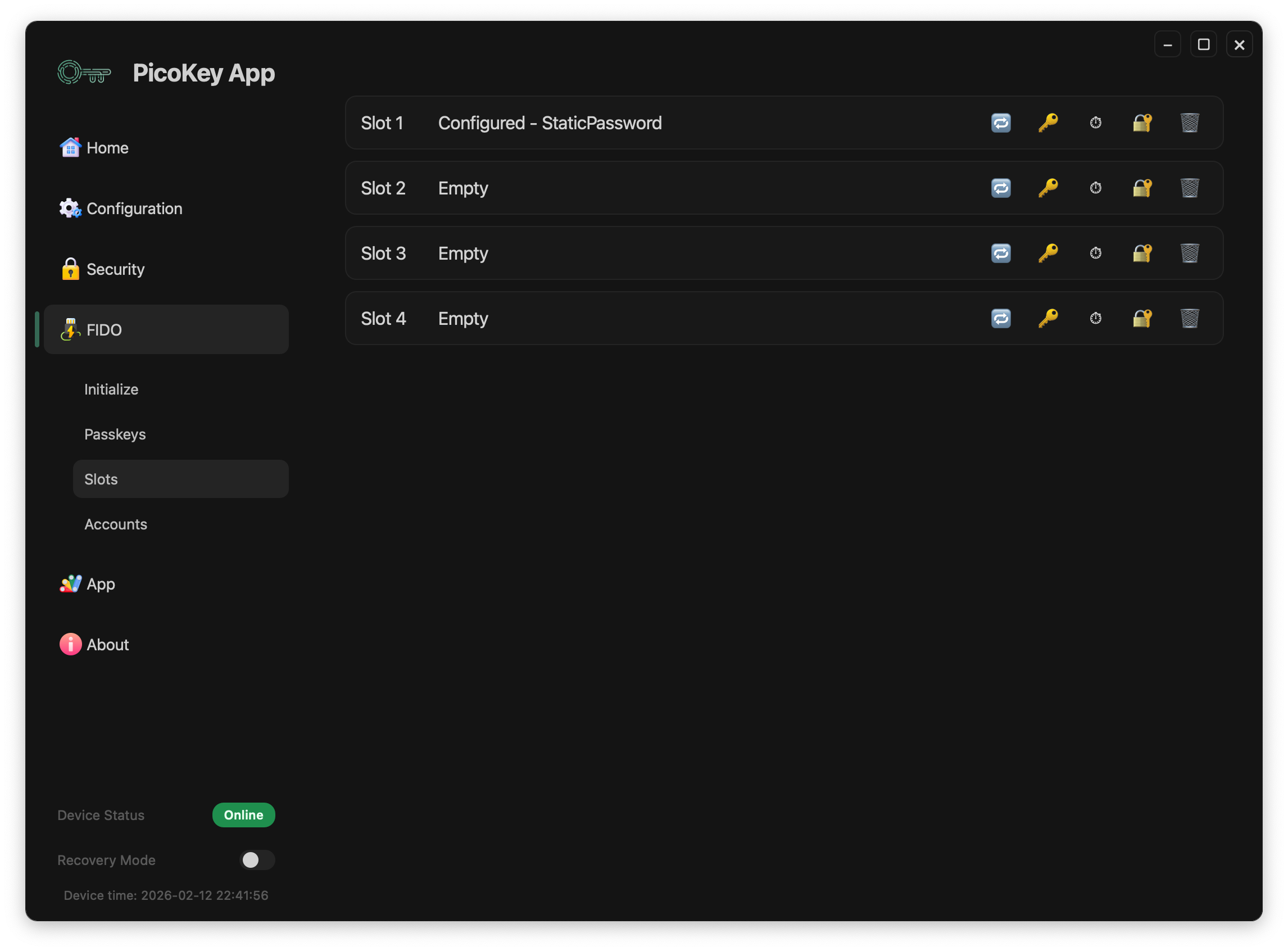
Overview
The Slots view shows all available slots supported by the device.
Each slot is either:
- empty; or
- configured with a specific function.
Slots are independent from each other and can be configured individually.
Slot activation
To activate a slot, press the BOOTSEL button N consecutive times, where N is the slot number.
- Slot 1: press once
- Slot 2: press twice in a row
- Slot 3: press three times in a row
- And so on for higher slot numbers
Note
Presses must be consecutive so the device can map the sequence to the correct slot.
For Static Password, YubiOTP, and HOTP slots, activation types the configured output on the host through the USB keyboard interface.
Note
This keyboard-style output does not apply to Challenge-Response slots.
Slot states
Empty
An empty slot has no configuration, so you can provision it for a new function. Triggering it has no effect.
Configured
A configured slot shows its number, function, and any other available details:
- The slot number
- The configuration type
- Additional information depending on the configuration
Examples of configured slots include:
- Static password
- YubicoOTP
Note
The exact slot capabilities depend on the firmware running on the device.
Slot actions
Use the icons to configure or manage a slot:
- Challenge-response
- Static password
- HOTP
- YubiOTP
- Delete slot configuration
Delete slot configuration
Delete the slot configuration to:
- Returns the slot to the empty state
- Removes all associated data
Danger
Deleting a slot configuration permanently erases all data stored in the slot.
Registration requirement
Register the board in PicoKey App before using the slot actions; otherwise, the buttons are disabled.