PIV
This page documents the OpenPGP > PIV view in PicoKey App.
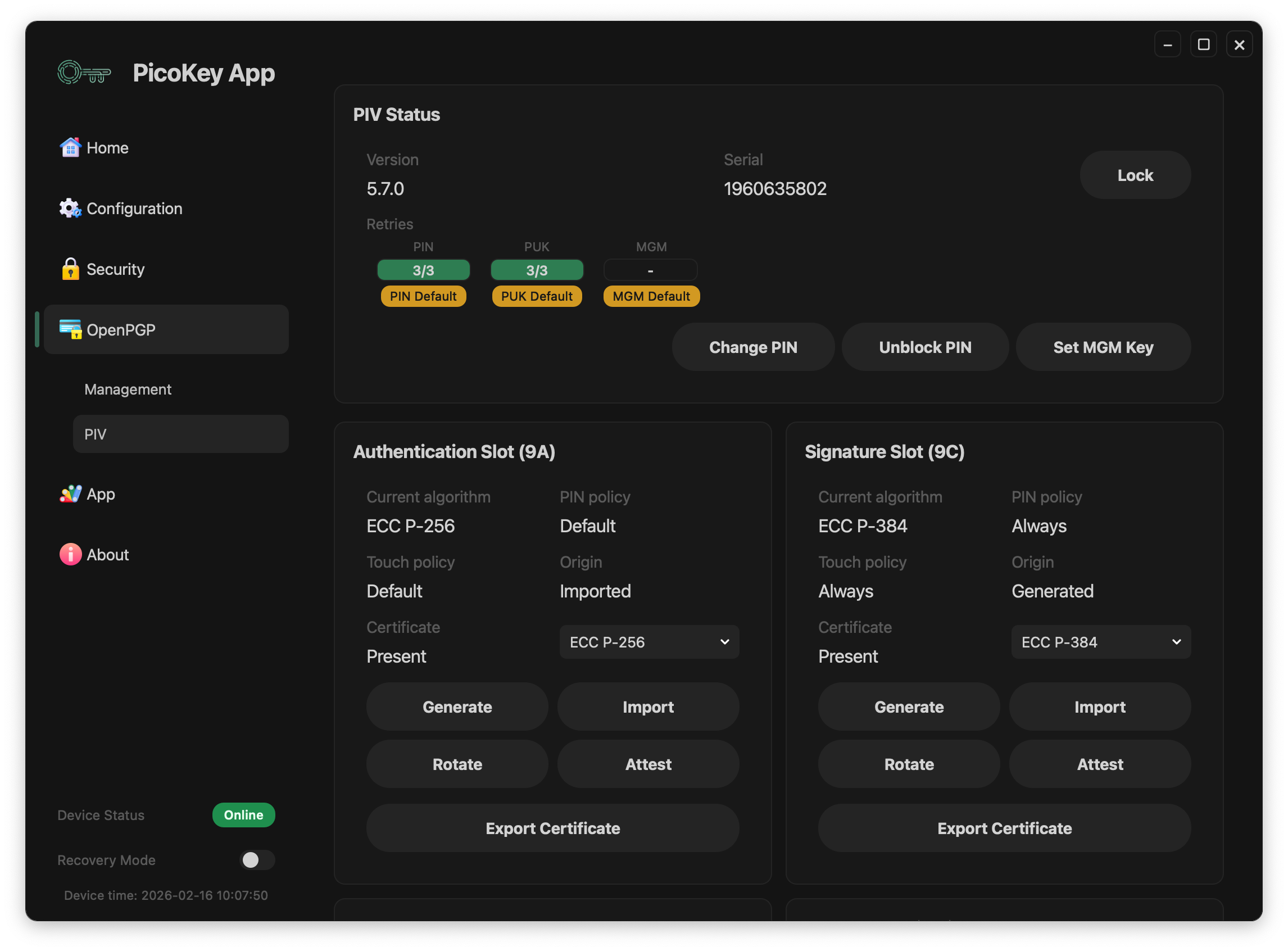
PIV status
The PIV Status panel includes:
VersionSerial- Retry counters for:
PINPUKMGM- Default credential indicators (
PIN Default,PUK Default,MGM Default) - Session action:
Unlock/Lock(toggle) - Credential actions:
Change PINUnblock PINSet MGM Key
PIV unlock is performed using the MGM key (management key), not the user PIN.
Warning
Default PIN/PUK/MGM values should be changed before production use.
Slot model
The view shows standard PIV slot groups:
- Authentication Slot (9A)
- Signature Slot (9C)
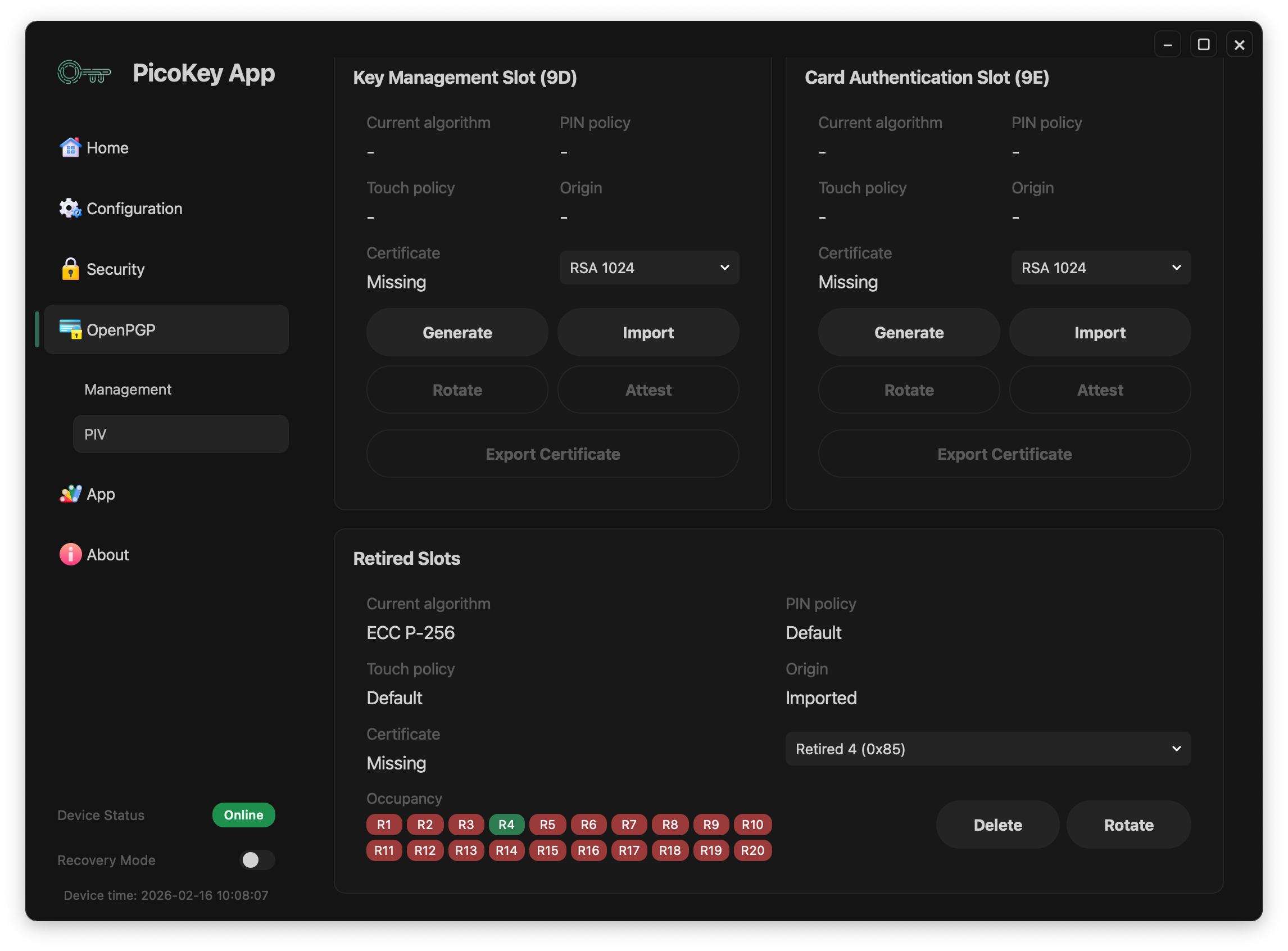
- Key Management Slot (9D)
- Card Authentication Slot (9E)
- Retired Slots
Per-slot metadata shown in the UI:
Current algorithmPIN policyTouch policyOrigin(for exampleGeneratedorImported)- Certificate state (
PresentorMissing)
Typical slot actions:
GenerateImportRotate(enabled only when applicable)Attest(enabled only when applicable)Export Certificate(enabled when a certificate is present)
Note
Disabled buttons indicate operations not available for the current slot state.
Import key workflow
The import modal (Import Key - Authentication (9A)) is used to load an existing private key into a PIV slot.
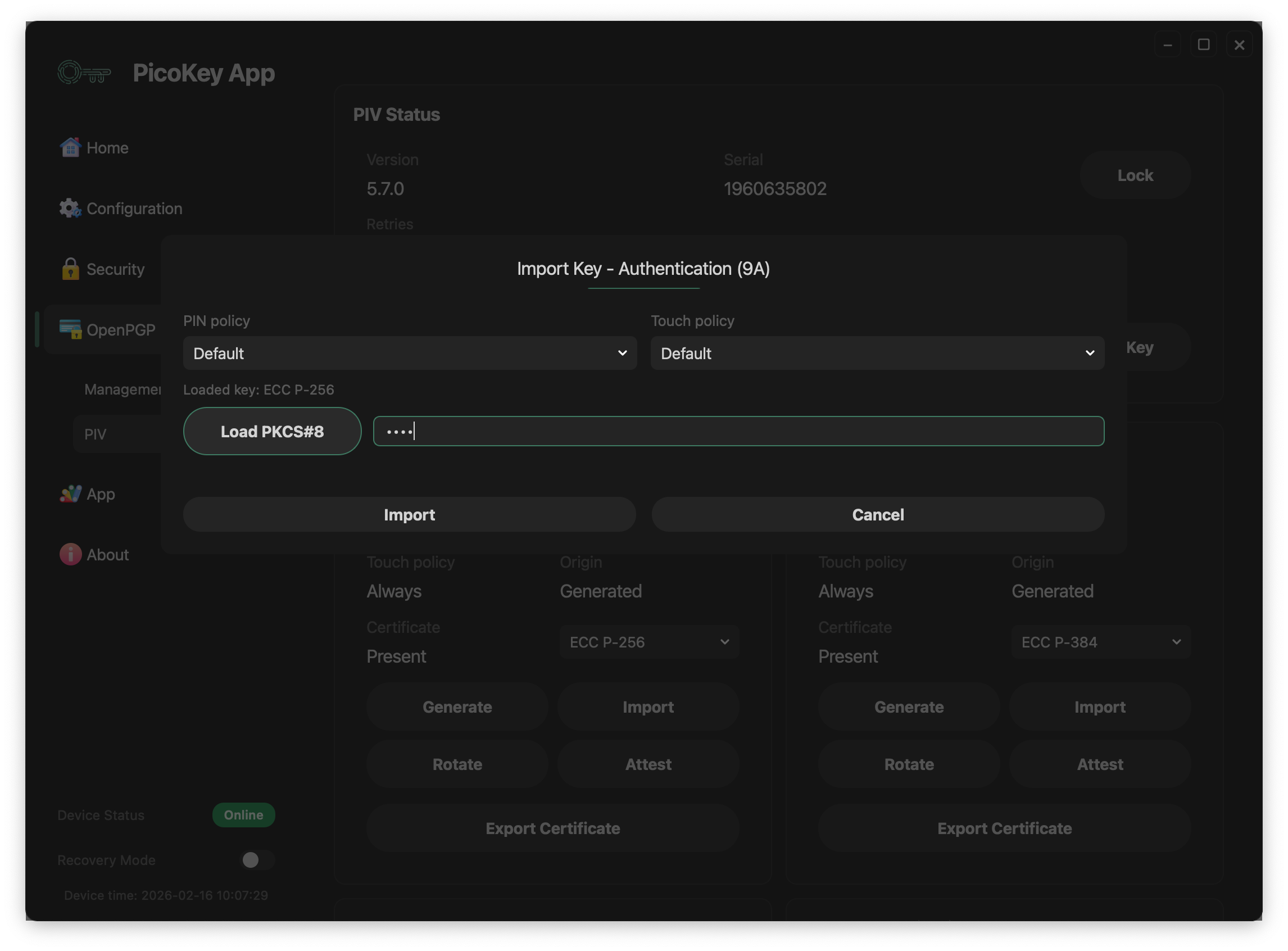
Fields and controls
PIN policy: defines when PIN verification is required for key usage.Touch policy: defines whether user presence/touch is required.Load PKCS#8: opens the file picker to load a PKCS#8 private key.Loaded key: read-only indicator with the parsed key type (example shown:ECC P-256).- Passphrase input: unlocks the key when the PKCS#8 file is encrypted.
Import: confirms and writes the key to the selected slot.Cancel: closes the modal without changes.
Recommended flow
- Open the target slot and click Import.
- Set
PIN policyandTouch policyaccording to your security requirements. - Click Load PKCS#8 and select the key file.
- Verify the
Loaded keytype is the expected one for that slot. - If needed, enter the key passphrase.
- Click Import to apply the operation.
Result
- On success, the slot origin becomes
Imported. - Slot metadata and certificate actions are refreshed based on the new key state.
Tip
Ensure the imported key matches the selected slot algorithm and certificate policy.
Rotate key workflow
The rotate modal (Rotate Key - Signature (9C)) moves an active key to another slot.
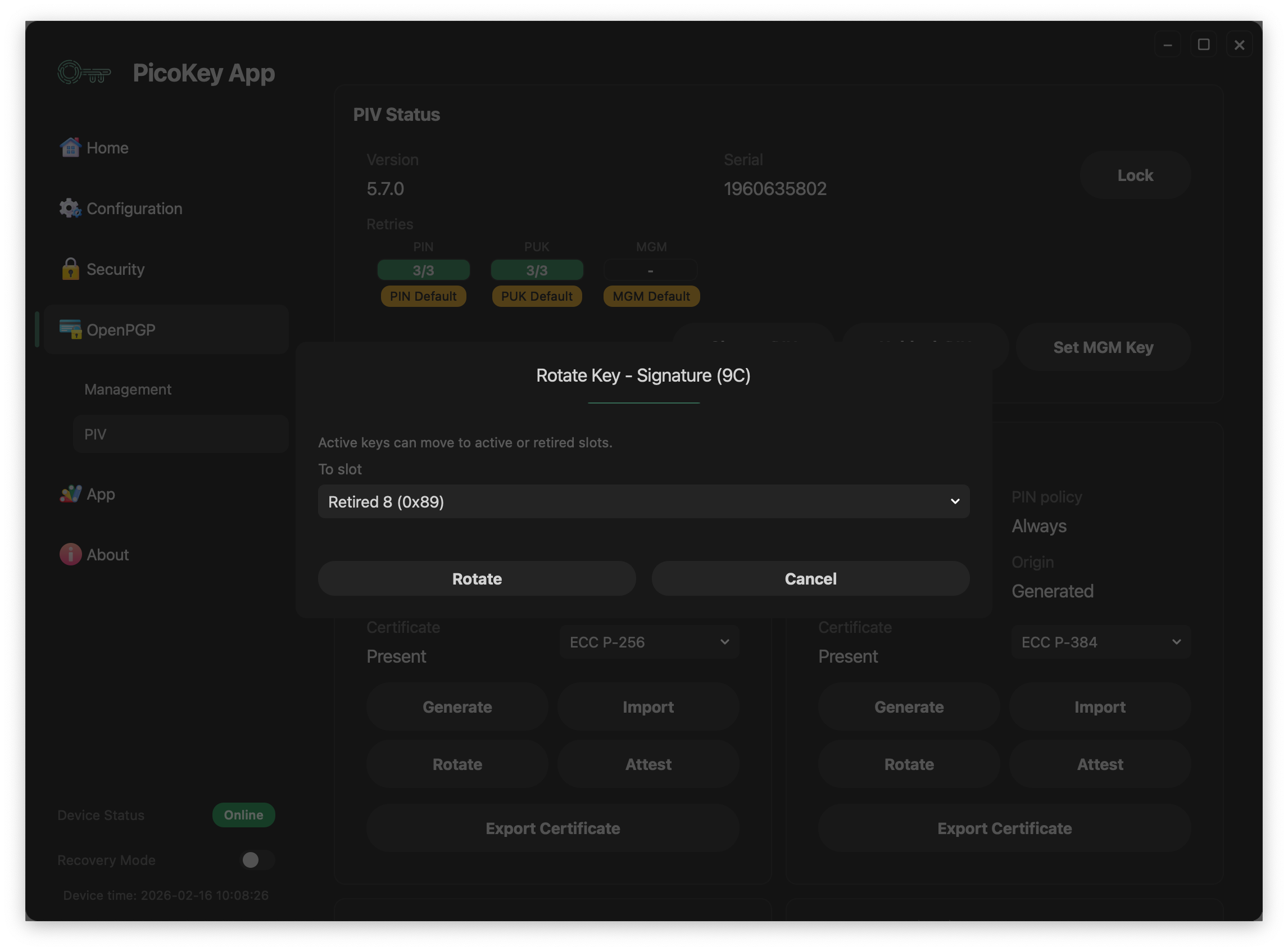
Fields and controls
To slot: destination selector (active slot, retired slot, orDelete permanently).Rotate: executes the move.Cancel: closes the modal without changes.
Active keys can be moved to active or retired slots.
Recommended flow
- In the source slot, click Rotate.
- Select the destination in
To slot. - Confirm with Rotate.
Result
- The key is reassigned to the selected destination slot.
- Occupancy indicators in Retired Slots are updated when rotating keys into retired positions.
- Disabled rotate actions in some slots indicate there is no key material available to move.
- Current firmware can move retired keys back to active slots; verify the destination and certificate association before committing the move.
- Choosing
Delete permanentlyremoves key material irreversibly.
Retired slots
The Retired Slots panel includes:
- Slot selector (example:
Retired 4 (0x85)) - Occupancy indicator for retired slots (
R1toR20) - Actions:
DeleteRotate
Retired slots are archival positions used to store keys and certificates that are no longer active (for example, expired material kept for traceability).
Occupied retired slots are shown in green and empty ones in red.
Danger
Moving, deleting, or rotating retired slot material can permanently impact certificate history and recovery workflows.
Registration requirement
This panel requires a registered board in PicoKey App. If the board is not registered, controls are restricted.