Pico HSM Key Management
This page documents HSM > Management > Keys in PicoKey App.
It covers:
- Unlocking the HSM session and using the collapsed session panel
- Key domain setup and DKEK workflows
- Key generation/import
- Key, certificate, and data object management
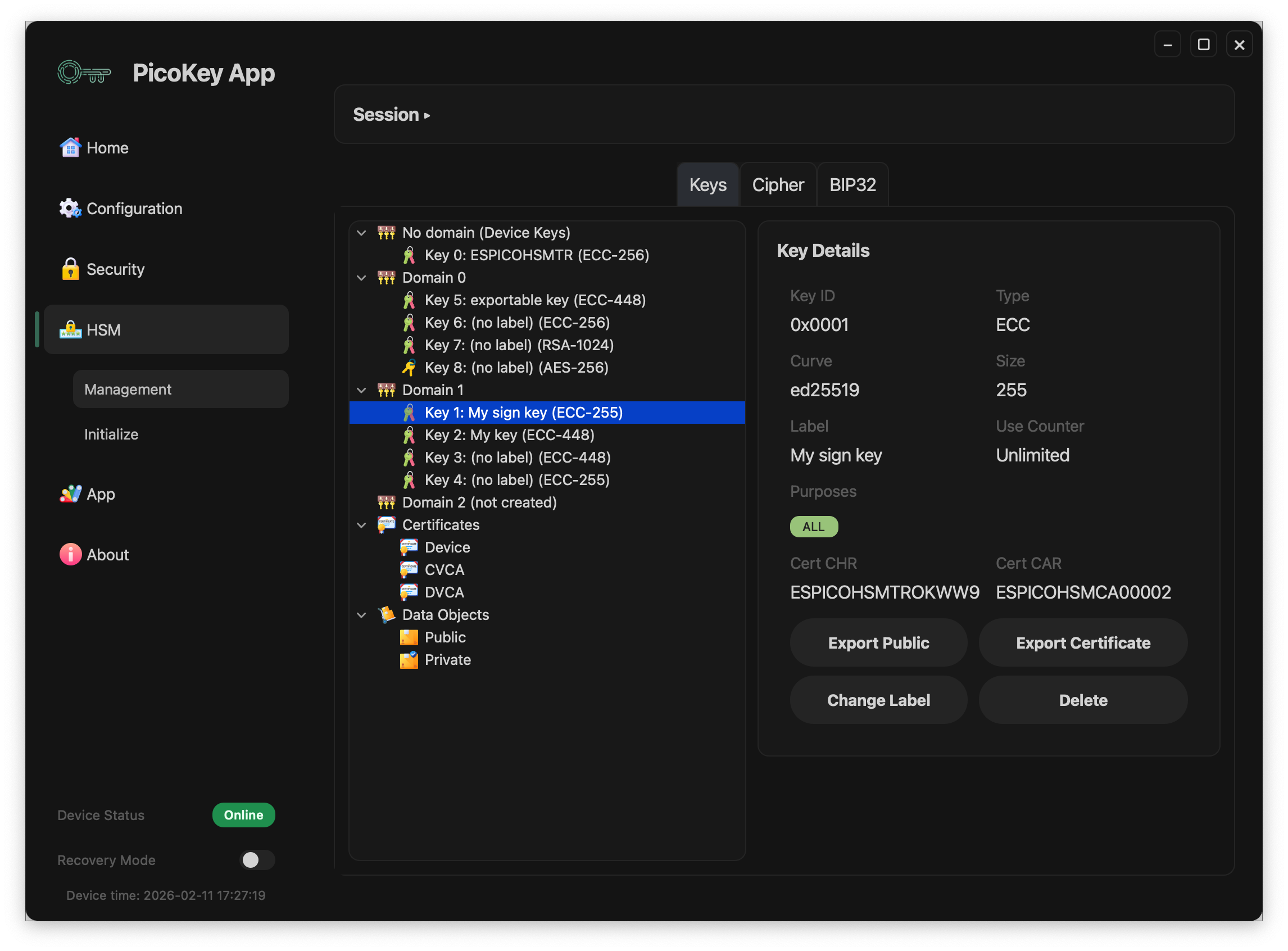
Load management session
When opening HSM > Management, the first state is the unlock view.
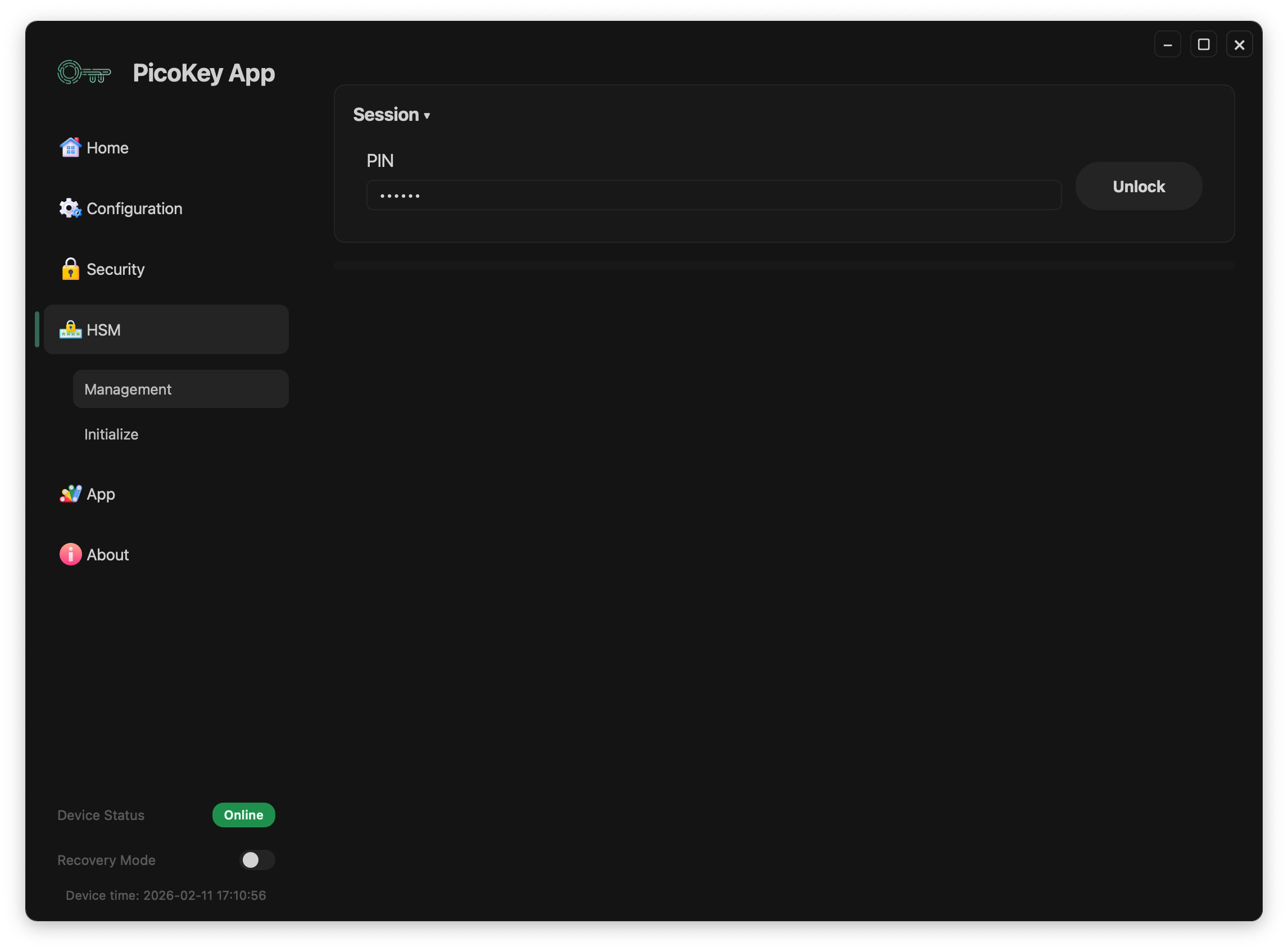
- Enter the user
PIN. - Click Unlock.
- Wait until key loading finishes.
After a successful unlock, the Session section collapses to save space.
If you expand the Session section again, you can access maintenance actions:
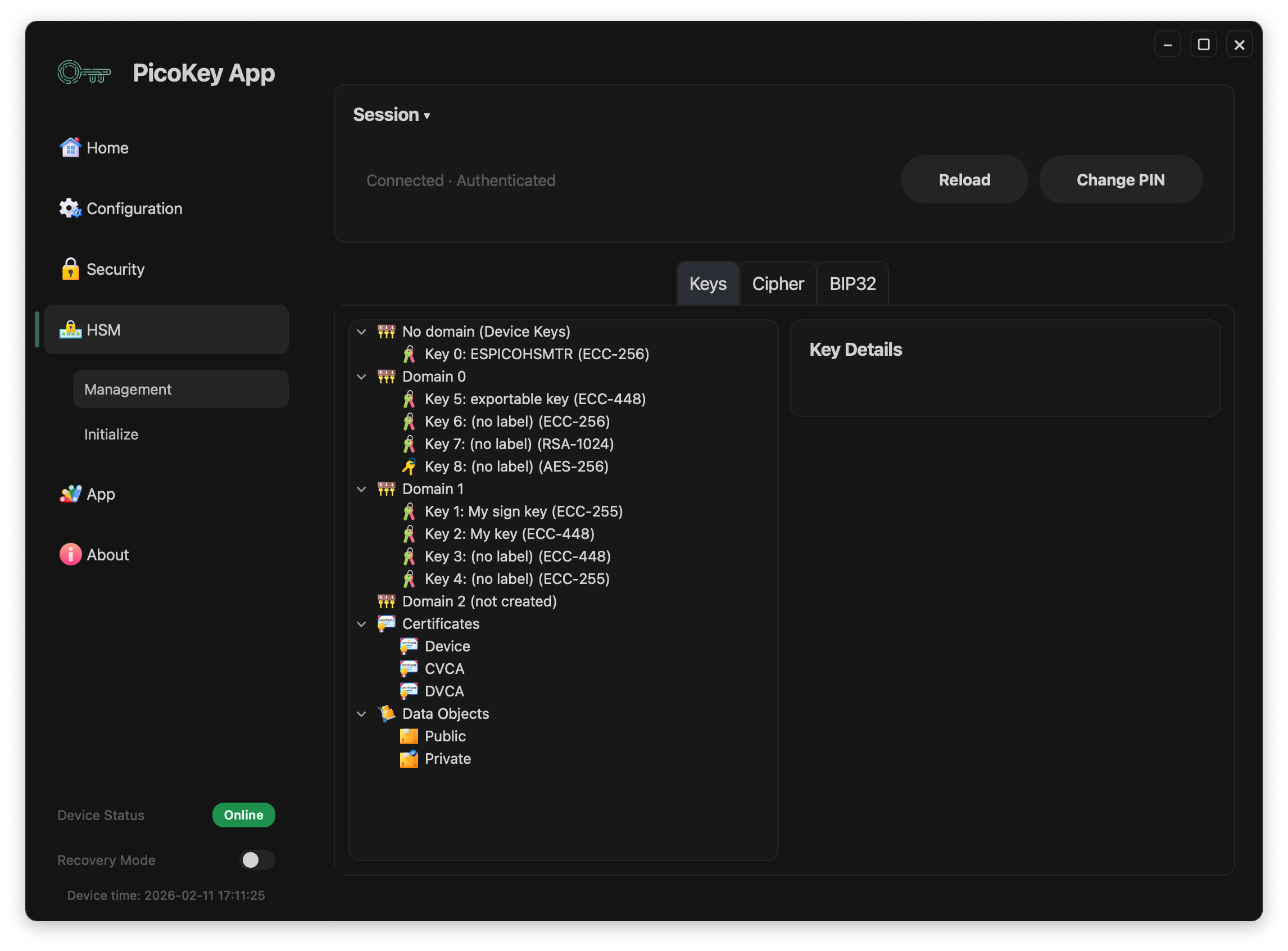
Session buttons
- Reload: reloads keys/domains/certificates for the current authenticated session.
- Change PIN: opens the PIN change flow.
Note
If unlock fails, management data is not loaded.
Keys view layout
The Keys tab has two main areas:
- Left panel: hierarchical tree (
No domain,Domain N, keys, certificates, data objects) - Right panel: context actions and details for the selected item
Tabs shown at the top:
- Keys: key tree and key/domain actions
- Cipher: cryptographic operations view
- BIP32: hierarchical deterministic key view
For cipher operations, see Cipher.
Key domains workflow
1) Setup a new key domain
Select a domain marked as (not created).
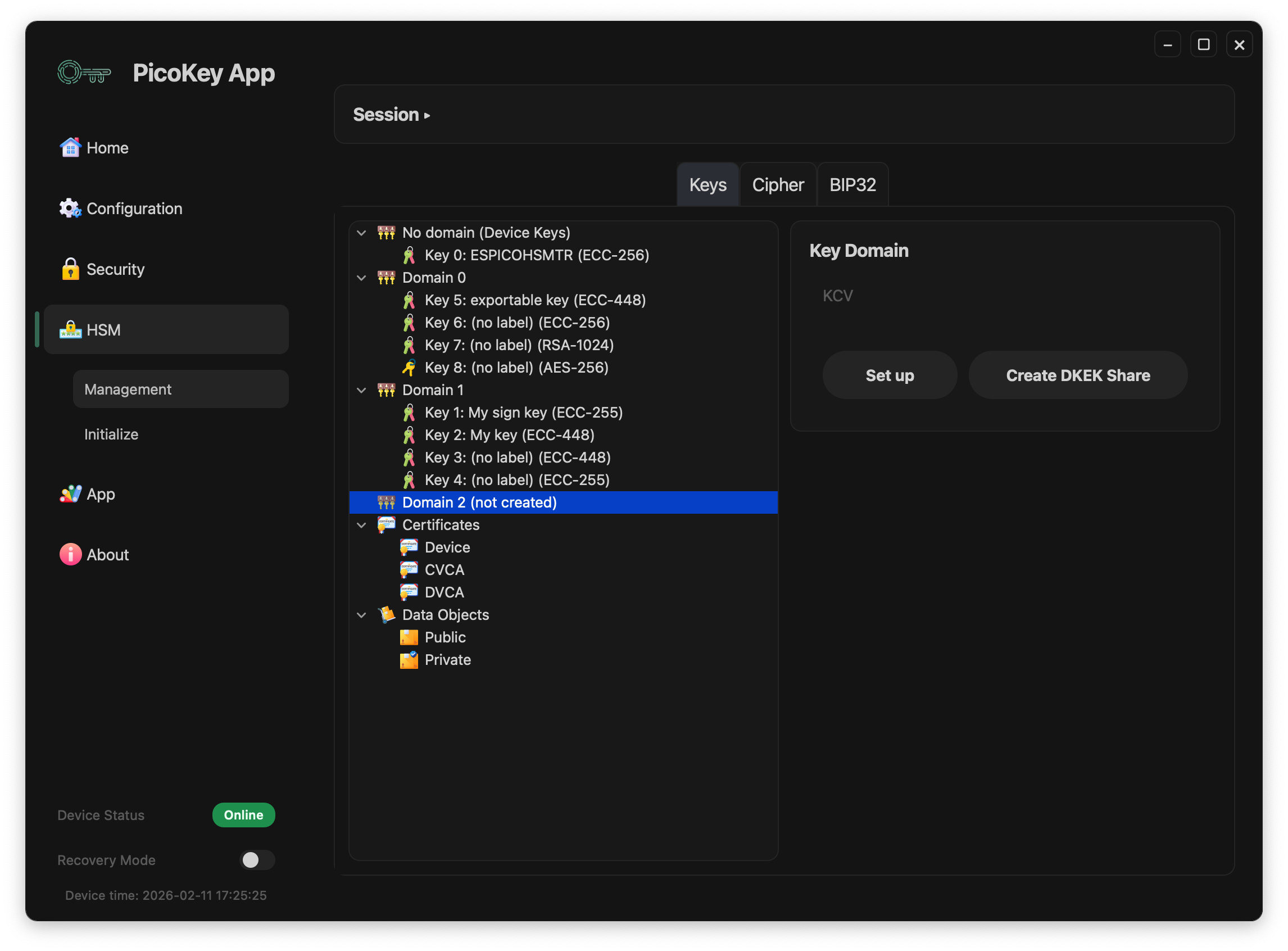
Available actions in this state:
- Set up: creates the key domain.
- Create DKEK Share: creates a DKEK share file in
.pbeformat so it can be imported later.
2) Create DKEK share (.pbe)
Click Create DKEK Share to open the DKEK share creation dialog.
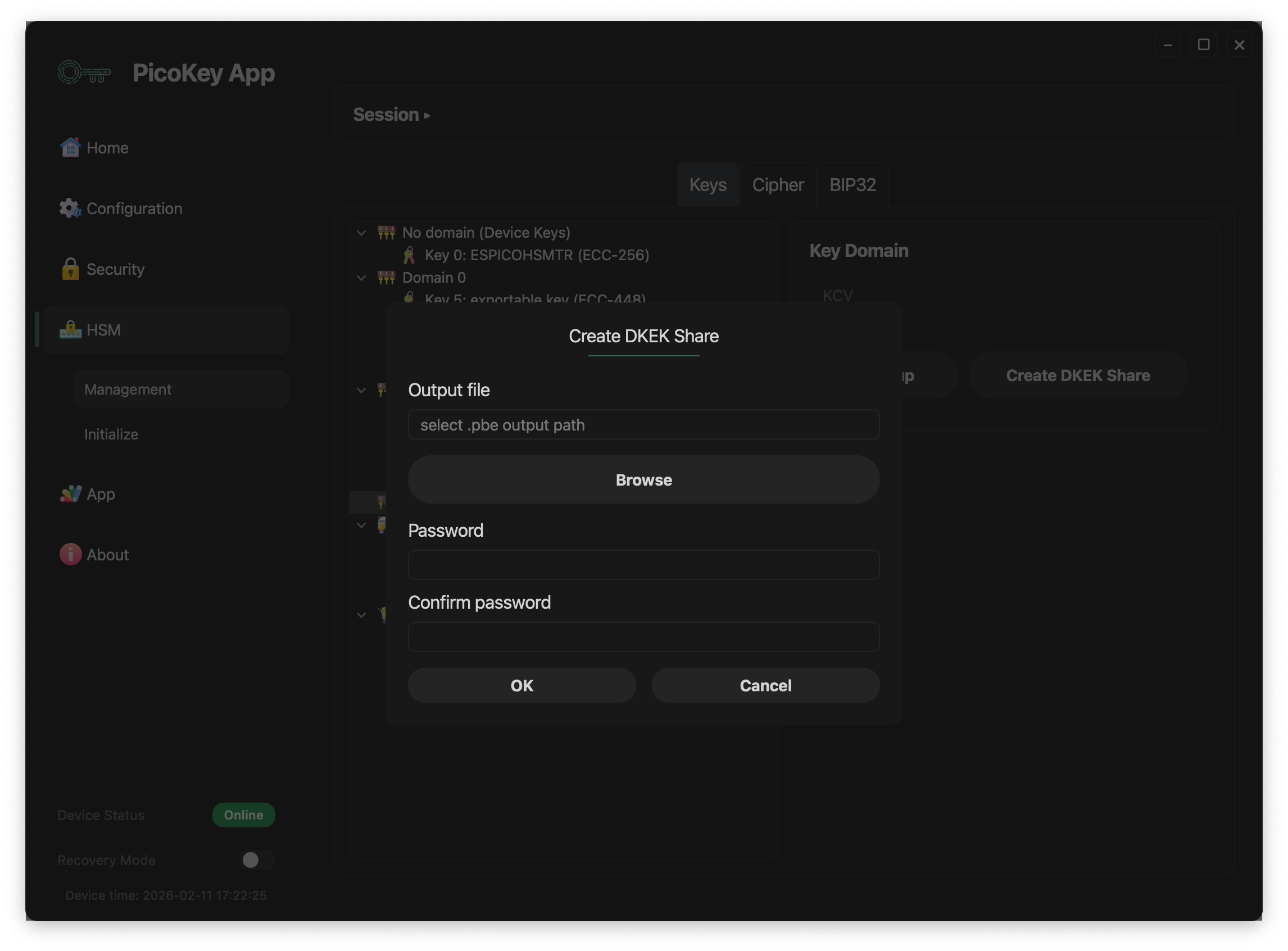
Dialog fields:
- Output file: destination path for the generated
.pbefile. - Browse: opens file picker for output location.
- Password: password used to protect the DKEK share.
- Confirm password: must match the password.
3) Import missing DKEK share(s)
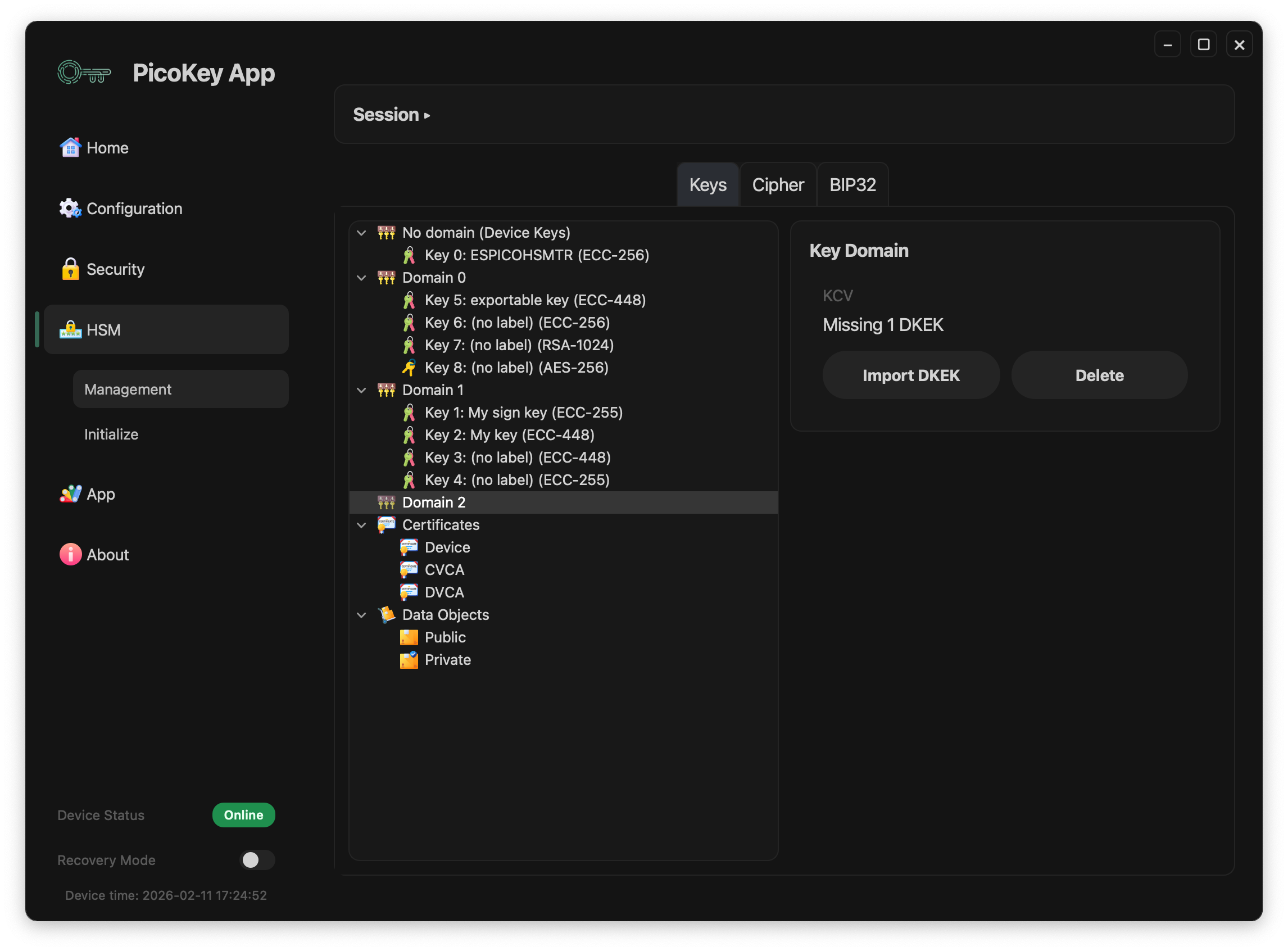
If a domain shows Missing 1 DKEK, click Import DKEK.
A password dialog is shown:
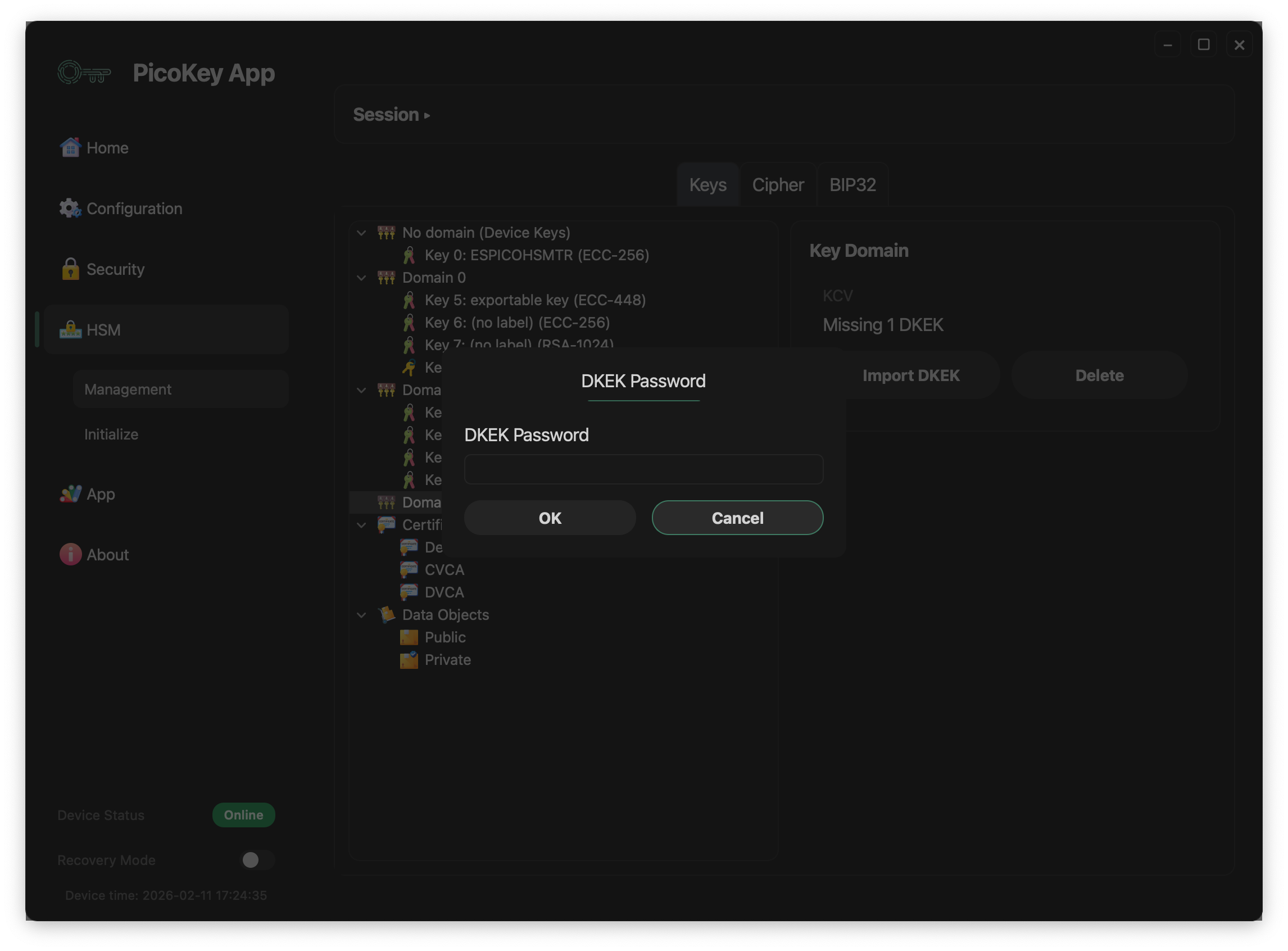
This step loads the DKEK share into the domain using the share password.
4) Domain ready state
When the required DKEK material is present, the domain shows a KCV and full actions:
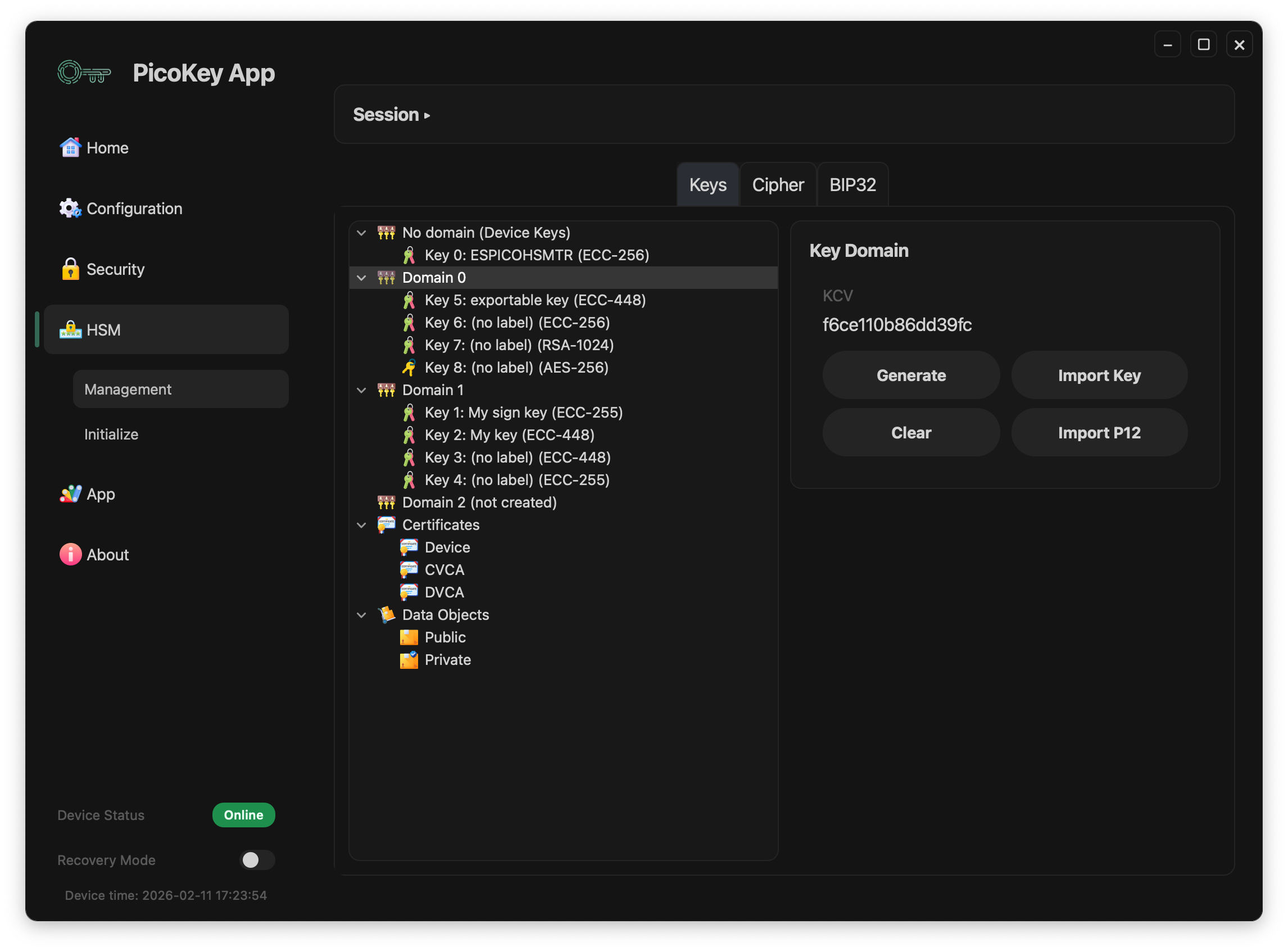
Domain buttons:
- Generate: create a new key directly in that domain
- Import Key: import an existing key into the selected domain
- Clear: remove DKEK material for that domain session/state
- Import P12: import key/certificate material from PKCS#12
- Delete: remove the domain configuration
Danger
Deleting a domain or clearing critical domain material can make keys unavailable.
Generate key
From a ready domain, click Generate.
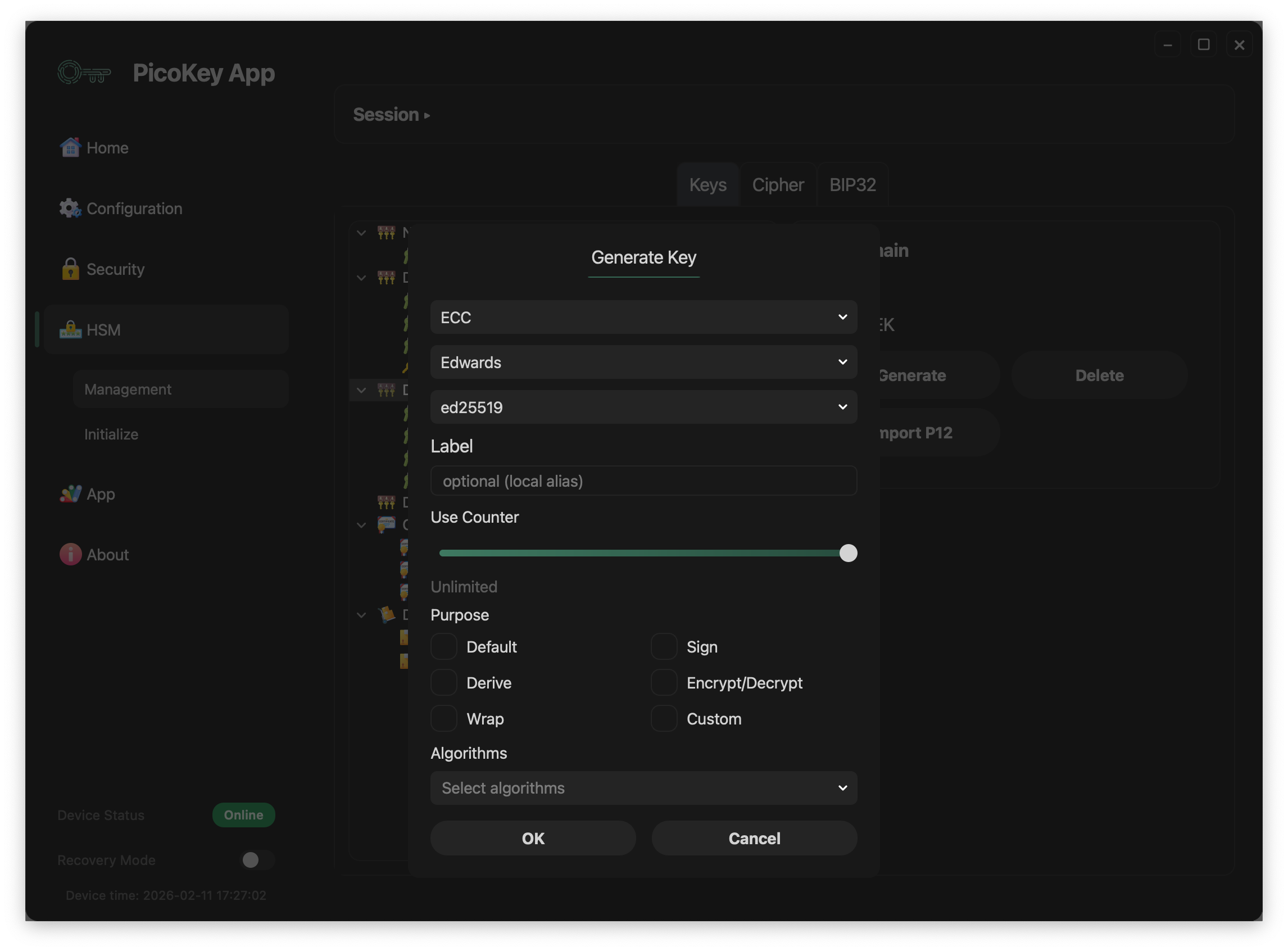
Visible parameters in the dialog:
- Key type/family/curve selectors (example shown:
ECC+Edwards+ed25519) - Label: local alias for easier identification
- Use Counter: usage limit slider (
Unlimitedwhen not limited). This is a decrementing counter: each key use decreases it by 1, and when it reaches0the key can no longer be used. - Purpose flags:
Default,Derive,Wrap,Sign,Encrypt/Decrypt,Custom - Algorithms: algorithm set bound to key usage policy
Import PKCS#12 (P12)
From domain actions, click Import P12.
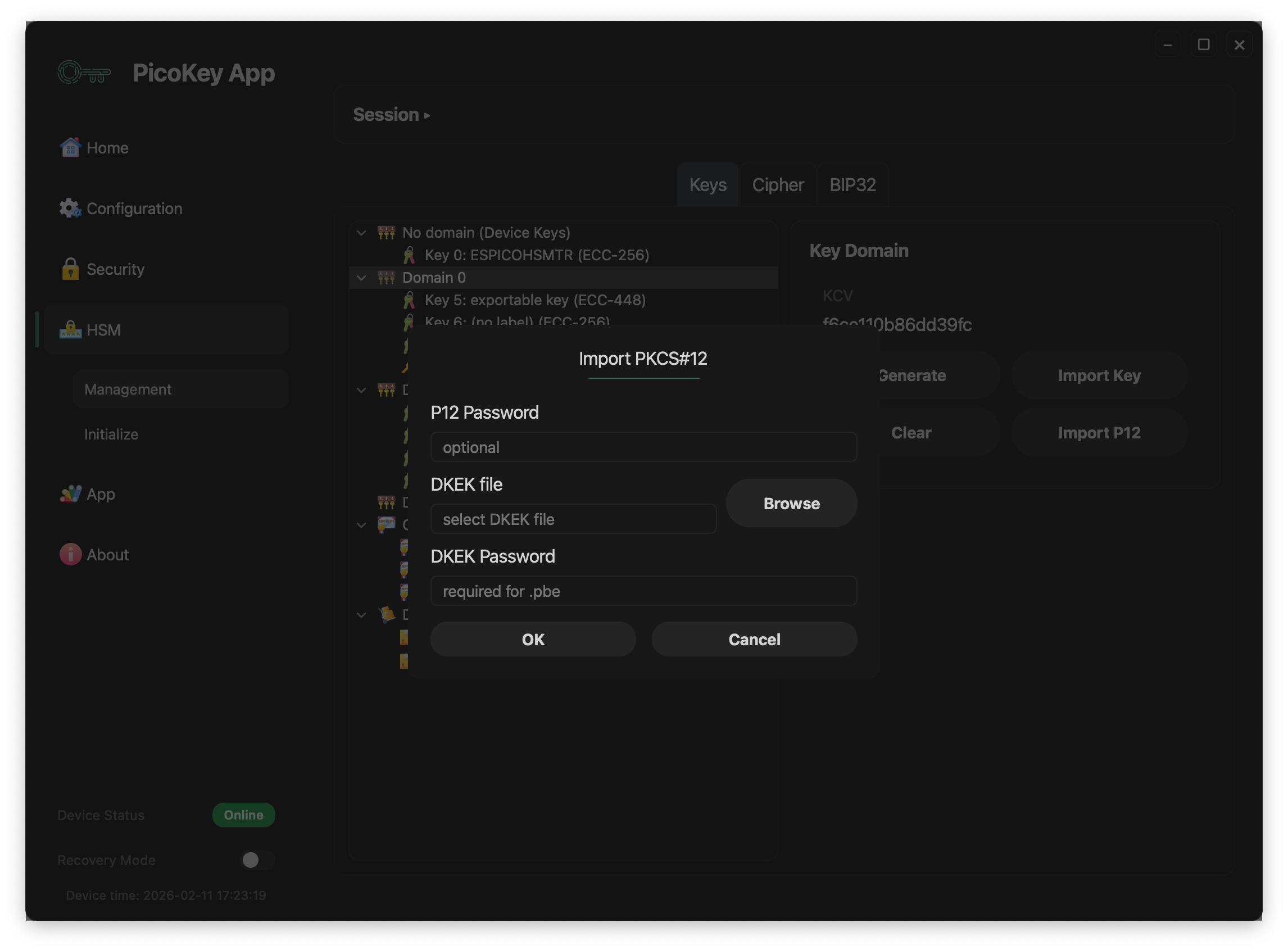
Dialog fields:
- P12 Password: optional password for the PKCS#12 container
- DKEK file + Browse: select DKEK file used during import
- DKEK Password: password used for PBE when required
Key details actions
When a key is selected in the tree, the right panel shows metadata and action buttons.
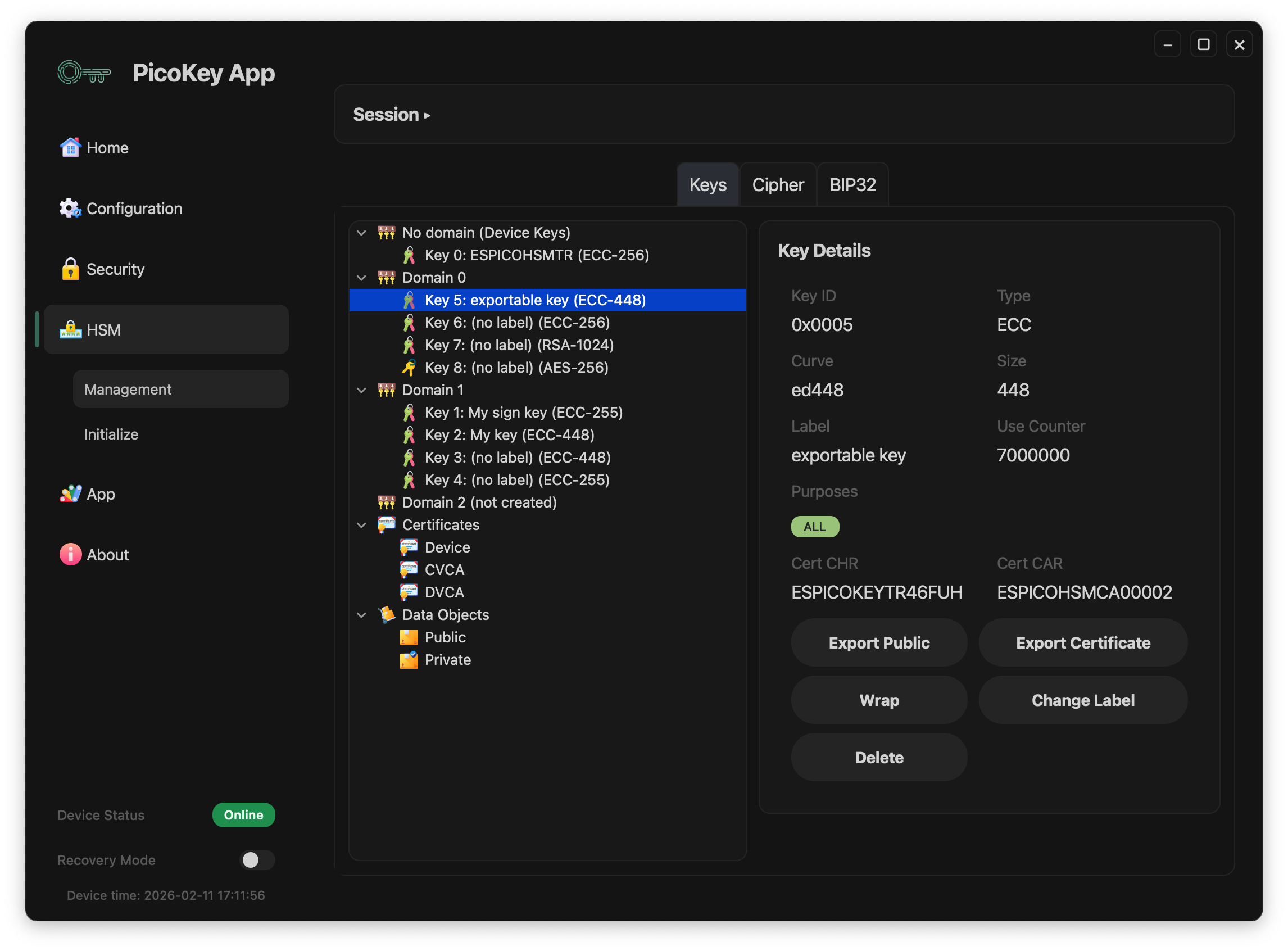
Common key actions:
- Export Public: exports the public part of the selected key
- Export Certificate: exports associated certificate when available
- Change Label: updates key label
- Delete: deletes the selected key
Conditional action:
- Wrap: wraps (exports in protected form) keys marked as exportable/wrappable
Displayed metadata includes:
Key ID,Type,Curve,SizeLabel,Use Counter,Purposes- Certificate references (
Cert CHR,Cert CAR) when present
Warning
Delete is irreversible. Ensure backups or wrapped exports exist before removal.
Certificate details
When you select an item under Certificates (for example Device, CVCA, DVCA), the right panel shows certificate metadata.
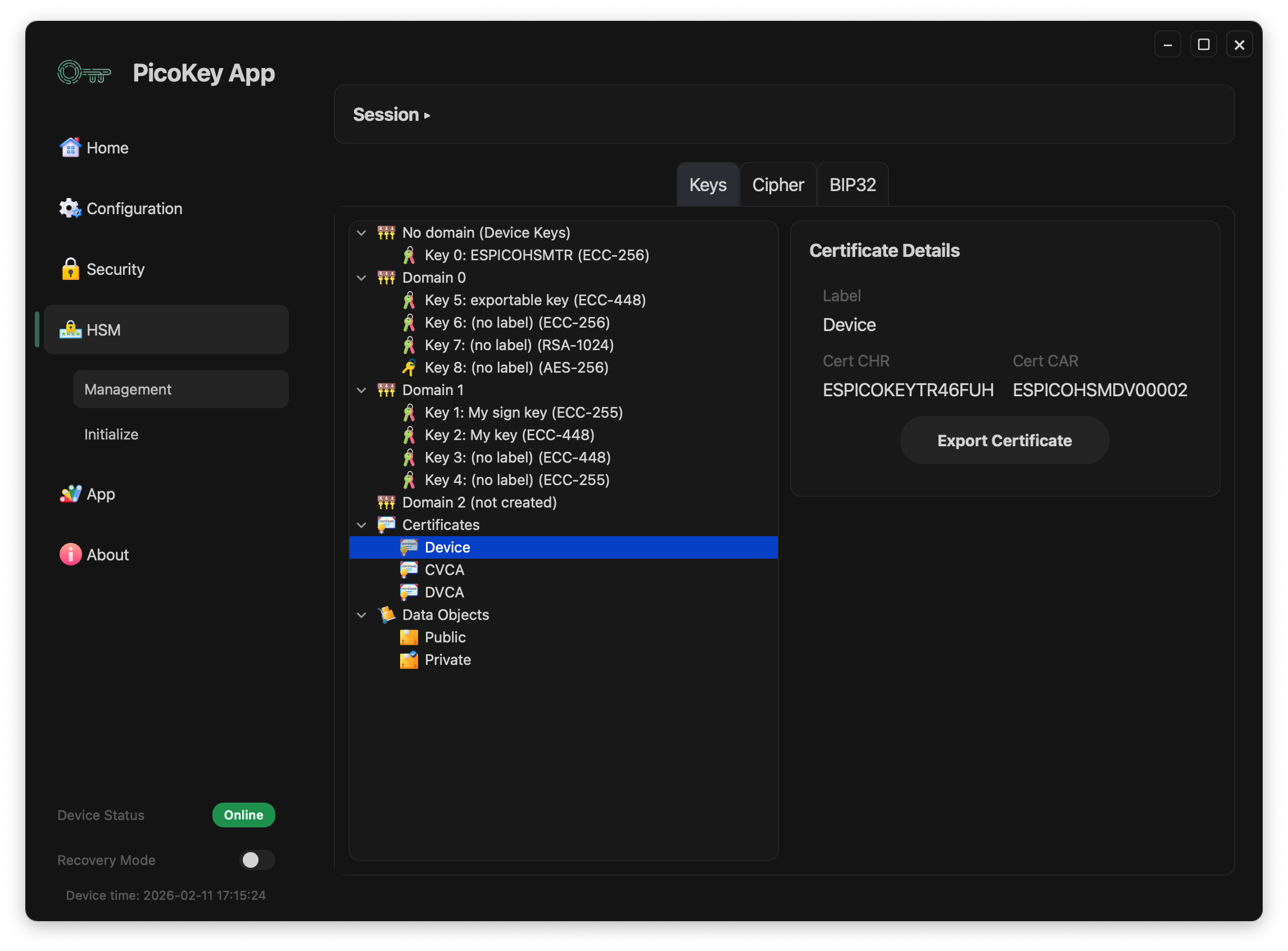
Visible fields:
Label: certificate alias shown in the UICert CHR: certificate holder referenceCert CAR: certificate authority reference
Action:
- Export Certificate: exports the selected certificate file.
Note
This action exports certificate data only, not the private key.
Certificate import
When the root Certificates node is selected, the right panel shows the import action.
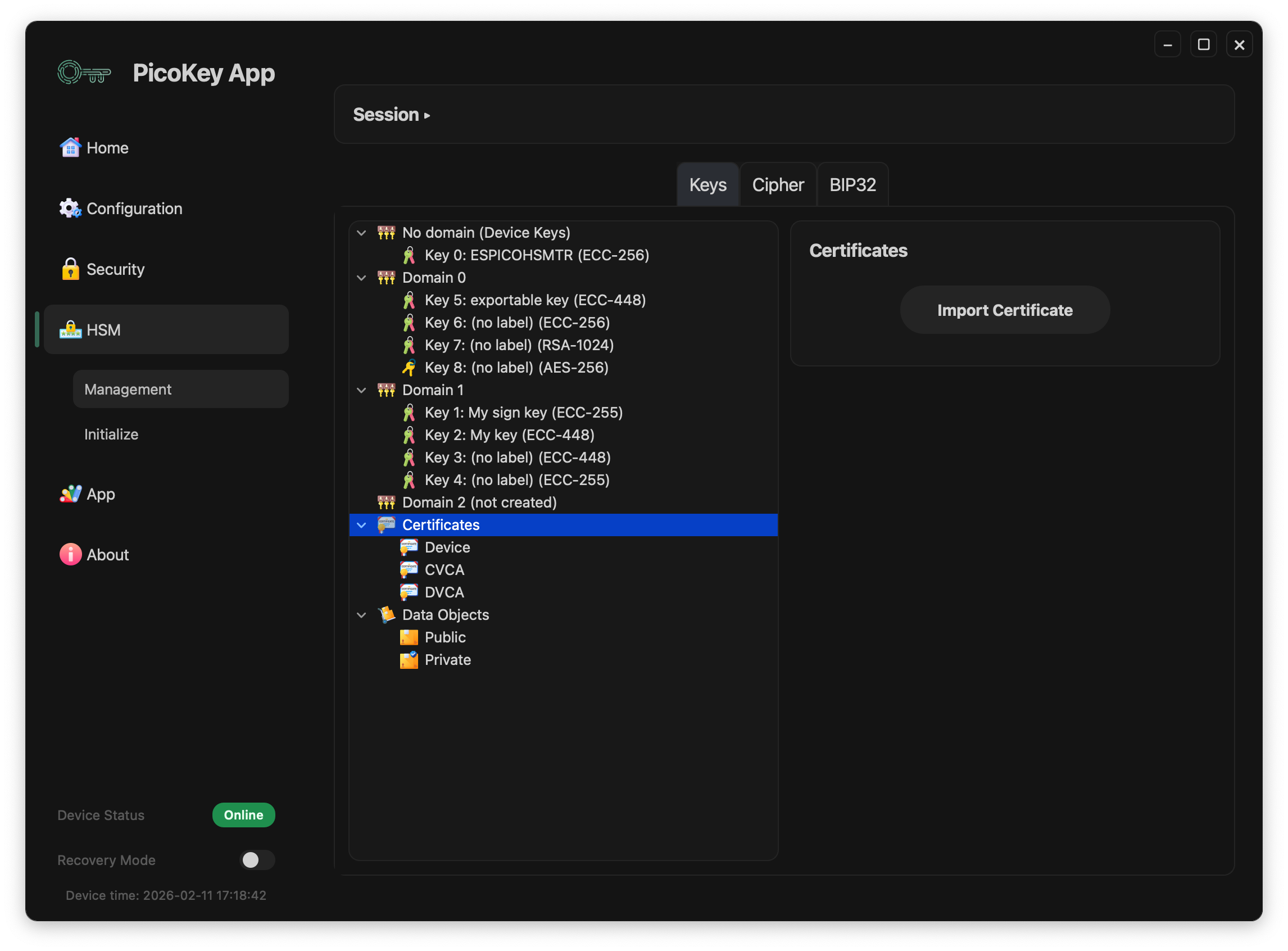
Action:
- Import Certificate: imports a certificate into the certificates store shown in the tree.
Data objects (Import Object)
Selecting Data Objects > Public shows import actions for public data objects.
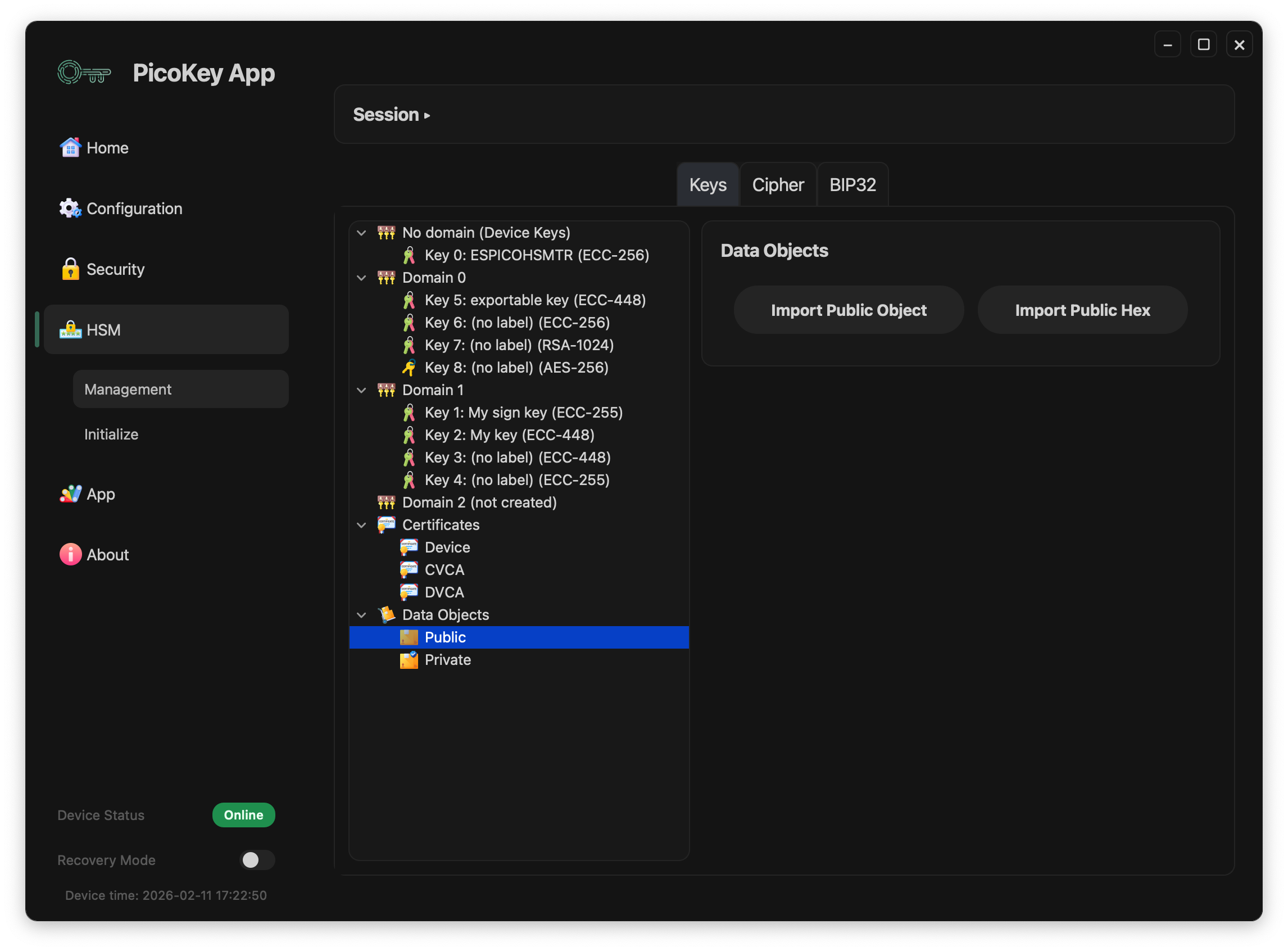
Available actions:
- Import Public Object: imports a public data object from a file.
- Import Public Hex: imports a public data object from hexadecimal input.
Data Objects > Private is reserved for private objects and follows the same tree navigation pattern.