First-time use
This section describes the mandatory steps required the first time you use PicoKey App with a new device.
These steps are only performed once per device and include irreversible operations. Read this section carefully before proceeding.
Overview
When using PicoKey App for the first time, the following actions are required:
- Install a valid license
- Connect a compatible PicoKeys device
- Select the correct board type
- Register the board
- Commission the device
Some of these steps cannot be undone.
Step 1 – Install a license
Before a device can be registered, a valid license must be installed.
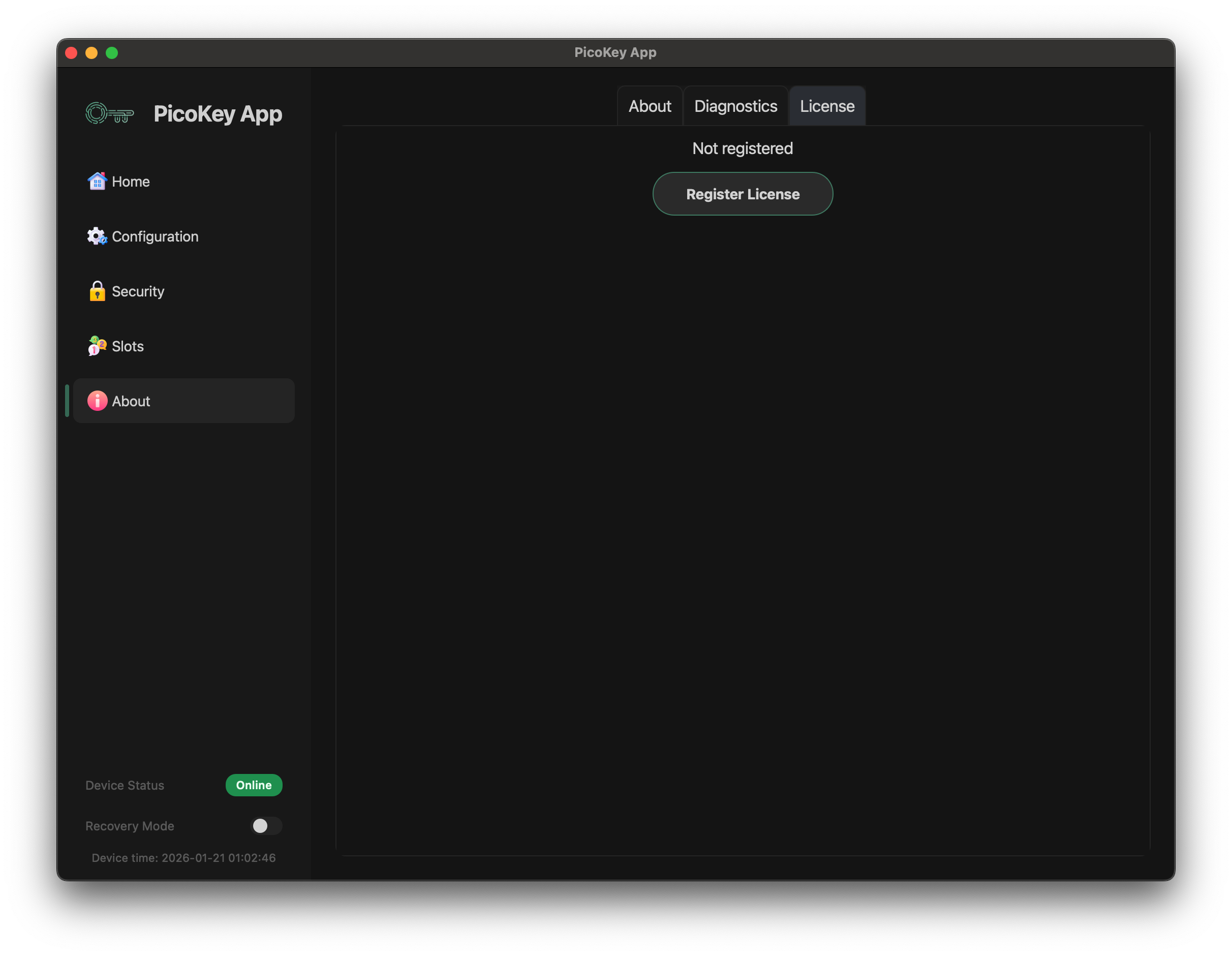
- Open About → License
- If no license is installed, the status will show Not registered
- Click Register License
- Enter or import your license
- Confirm that the license is accepted
At this stage:
- The license is installed locally
- No device is registered yet
Step 2 – Connect the device
- Plug the PicoKeys device into a USB port
- Use a direct USB connection whenever possible
- Launch PicoKey App if it is not already running
Go to Home and verify that:
- The device is detected
- A green Device detected indicator is shown
If the device is not detected:
- Try a different USB cable or port
- Close other applications that may be accessing the device
- Reconnect the device and restart PicoKey App
Step 3 – Select the board type (mandatory)
Before registering the board, you must explicitly select the correct board type.
This step is required and user-controlled.
- The board type defines the hardware variant associated with the license
- PicoKey App cannot automatically infer the correct board in all cases
- The user is responsible for selecting the correct option
Warning
Once the board type is selected and the board is registered, the board type cannot be changed.
Take special care at this step.
Info
Do not attempt to register the board in BOOTSEL mode. Proceed with a PicoKey firmware running normally.
Step 4 – Register the board
After selecting the board type:
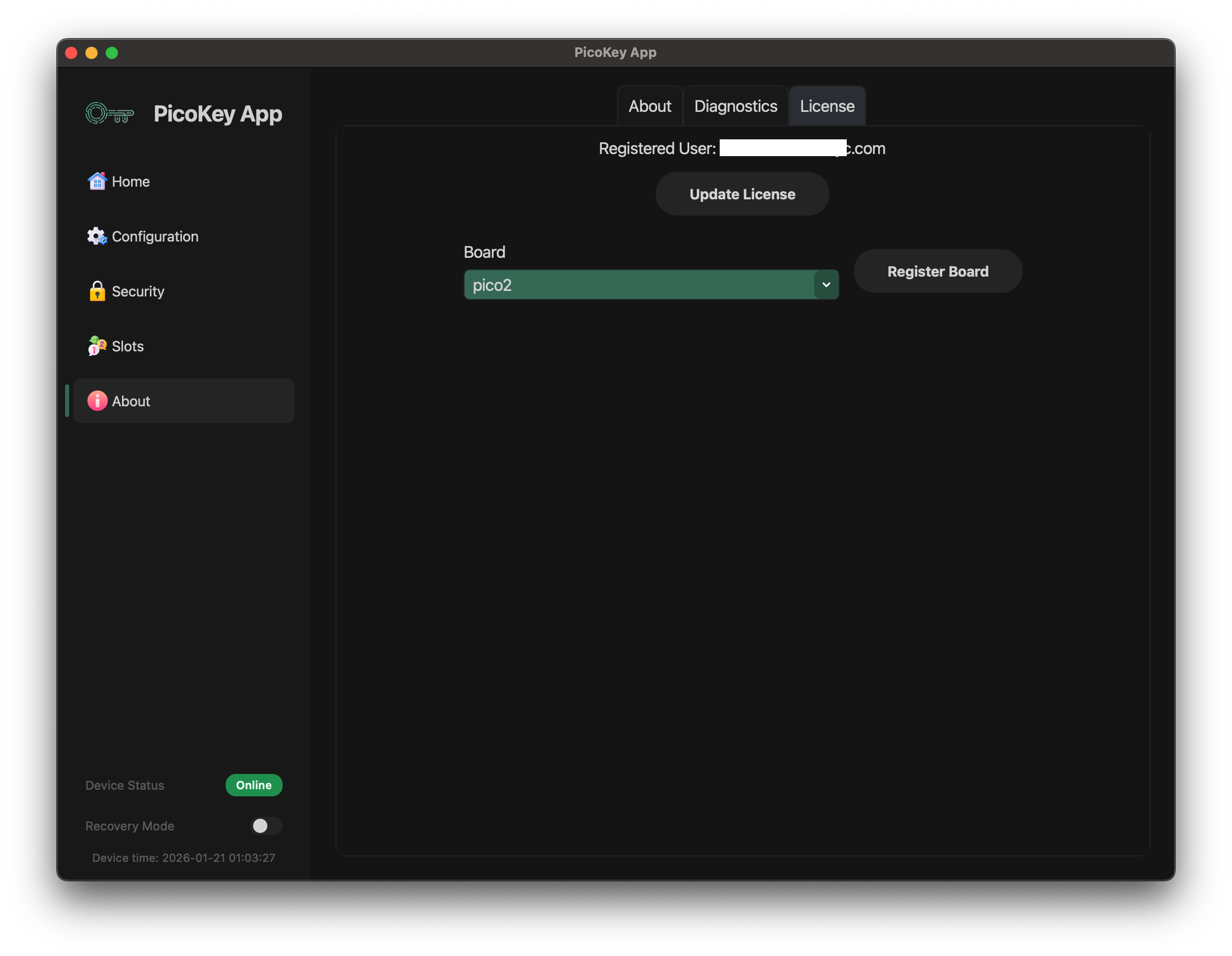
- Go to About → License
- Select the target board
- Click Register Board
- Wait for confirmation
Once completed:
- The license is bound to the selected board
- The board status changes to Registered
This operation is final for that license and board.
Step 5 – Commission the device
After board registration, the device must be commissioned.
- Go to Configuration
- Review the available configuration options
- Click Commission device
- Wait for the confirmation message
Commissioning:
- Applies the selected configuration
- Writes persistent state to the device
- Prepares the device for normal operation
If your board is not listed
If your board model does not appear in the board selection list:
- Do not proceed
- Do not select a different or “similar” board
Instead, open a support ticket at:
https://github.com/polhenarejos/picokeyapp/issues
Include:
- The exact board model
- The version
- The firmware version running on the device
- Any relevant screenshots or logs
Summary
For first-time use, the following points are critical:
- Installing a license is mandatory
- The board type must be selected manually by the user
- Board selection is irreversible
- Commissioning finalizes the setup
- If the correct board is not listed, open a ticket before continuing