Firmware update
This section explains how to update the firmware of a PicoKeys device using PicoKey App.
Firmware updates modify the software running on the device and may affect available features and behavior.
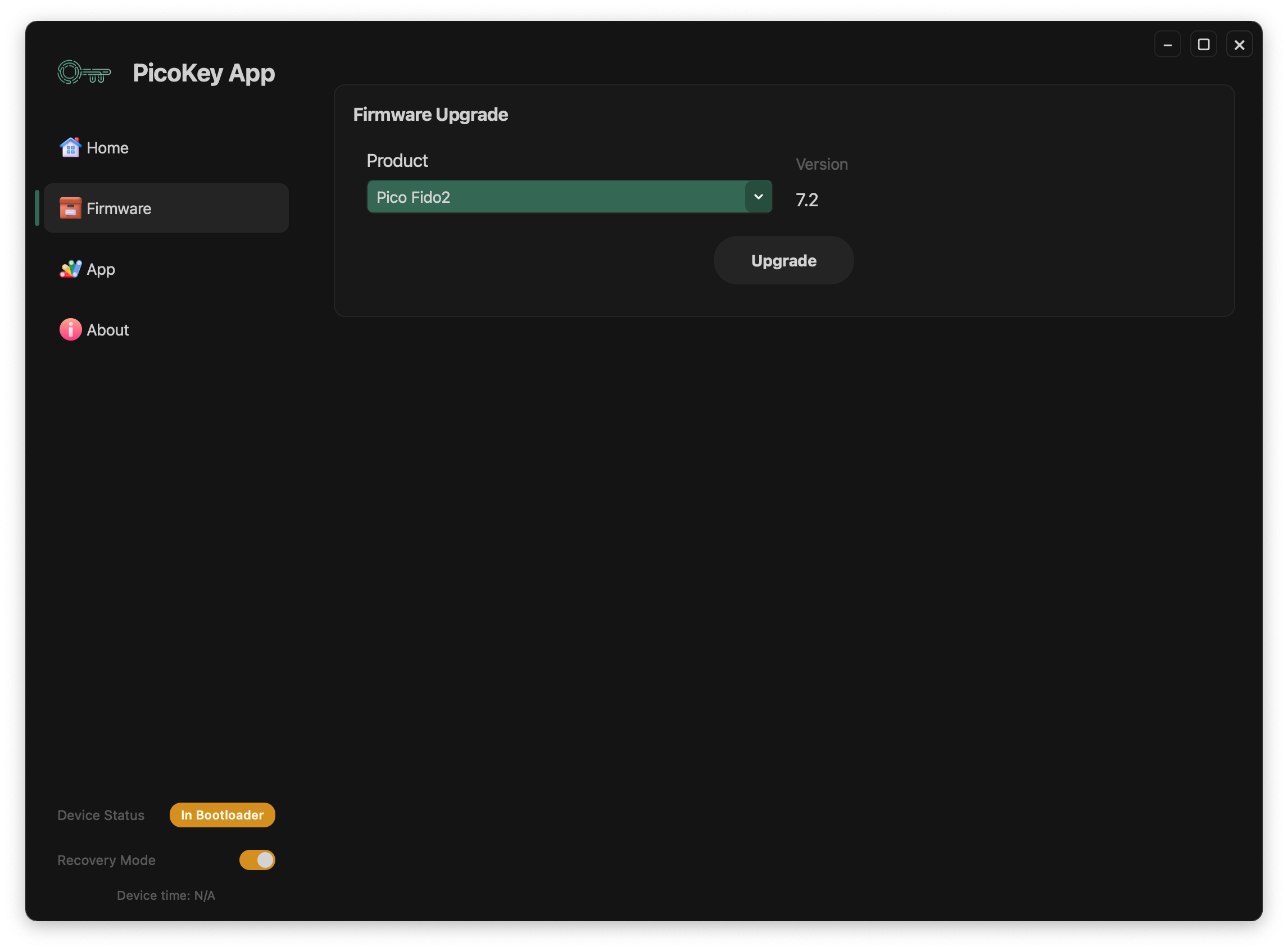
Overview
Firmware updates are used to:
- Install a new firmware variant (e.g. Pico HSM, Pico FIDO, Pico OpenPGP)
- Update an existing firmware to a newer version
- Recover a device in case of a corrupted or incomplete firmware
Firmware updates are explicit user actions and are never performed automatically.
Supported update modes
Depending on the device state and firmware, PicoKey App may support firmware updates when the device is BOOTSEL / RESCUE mode. For new or freshly flashed devices, RESCUE mode is expected.
Before you start
Before performing a firmware update:
- Ensure the device is connected directly to the computer
- Avoid USB hubs during the update
- Close other applications that might access the device
- Do not disconnect the device during the process
Warning
Interrupting a firmware update may leave the device in a recovery state and require manual intervention.
Entering BOOTSEL / RESCUE mode
If the device is not already in BOOTSEL / RESCUE mode:
- Go to Home
- Click Reboot to BOOTSEL
- Wait for the device to reconnect
Once in BOOTSEL / RESCUE mode, PicoKey App should detect the device again.
Performing a firmware update
The typical firmware update process is:
- Open the firmware update section in PicoKey App
- Select the firmware file to be installed (firmware files are usually provided as a binary image)
- Start the update process
- Wait until PicoKey App reports completion
- Reconnect the device if requested
During the update:
- Progress information may be displayed
- The device may temporarily disconnect and reconnect
After the update
After a successful firmware update:
- The device may reboot automatically
- The reported firmware version should change accordingly
- Available features in PicoKey App may change depending on the firmware
It is recommended to:
- Return to Home
- Verify firmware version and device status
- Perform commissioning if required by the new firmware
Firmware update and configuration
Installing a new firmware may:
- Reset some configuration settings
- Require re-commissioning
- Change available configuration or security options
Note
Firmware functionality is defined by the installed firmware, not by PicoKey App itself.
If something goes wrong
If the firmware update fails:
- Do not unplug the device immediately
- Follow any instructions shown by PicoKey App
- If the device enters BOOTSEL / RESCUE mode, retry the update
If recovery is not possible or behavior is unclear, open a ticket at:
https://github.com/polhenarejos/picokeyapp/issues
Include:
- PicoKey App version
- Firmware version (if known)
- Device platform and board model
- A description of what happened and at which step
Important notes
- Firmware updates are explicit and user-controlled
- PicoKey App does not automatically select or install firmware
- Always verify that you are installing the correct firmware variant for your device